

Reserve, pay, confirm, scan — ticketing the Celebrio way.
Guests reserve seats and pay you directly via GCash, Maya, bank, or cash. You confirm the receipt, Celebrio issues the QR ticket, and your staff scans guests in at the door — even offline. 0% commission, always.
From setup to scan in 5 steps
A complete ticketing pipeline — verify, publish, reserve, confirm, scan — that scales from 20 guests to 50,000.
Get verified & create your event
Complete one-time organizer verification, then build your event page with cover, schedule, capacity, and ticket tiers (early bird, regular, VIP).
Pay the publishing fee & go live
Pay the one-time publishing fee based on capacity (Topaz ₱149 up to Painite ₱36,999). Once your event is approved and live, guests can start reserving seats.
Guests reserve & pay you directly
Guests reserve their seats on Celebrio, then pay you directly via GCash, Maya, bank transfer, or cash — Celebrio takes 0% commission and never holds your money.
Confirm payment, ticket is issued
Guests upload their payment receipt. You review it in the dashboard and confirm the booking — only then is the QR-code ticket generated and unlocked in the guest's account.
Scan at the door
On event day, staff open the Celebrio Check-In app, scan each guest's QR code, and admit them in under a second — even when venue Wi-Fi drops.
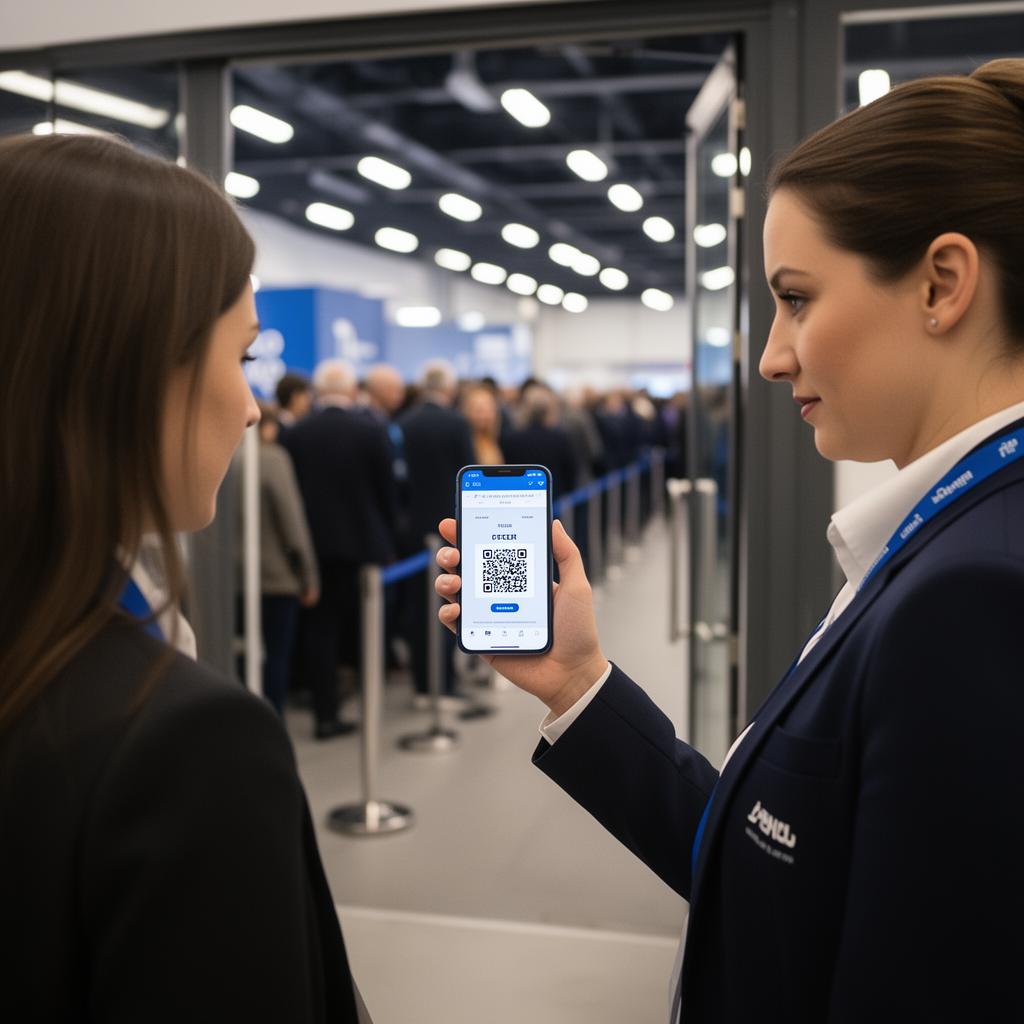
Scan tickets in seconds with confidence
Every Celebrio ticket carries a unique QR code. The Check-In app verifies tickets instantly at the door, so your line moves fast and fraud stays out.
The Check-In app lives inside your organizer dashboard. Install it to your phone home screen and it keeps scanning even when the venue Wi-Fi drops — every scan queues and syncs the moment you're back online.
Open Check-In app- Unique QR codes for every ticket — impossible to forge or screenshot-share.
- Guest list sync to every staff device the moment they log in.
- Multi-scanner sync — duplicate scans are caught instantly across all devices.
- Audit trail records who scanned what, when, and from which gate.
Built for every role on event day
Organizers, staff, and customers each get a purpose-built experience — no training required.

Run ticketing like a pro
Configure tiers, monitor sales, and manage your door team from one dashboard.
- Unlimited ticket tiers per event (early bird, regular, VIP)
- Guests pay you directly via GCash, Maya, bank, or cash — 0% commission
- Manual receipt review tools to confirm each booking
- Live sales, attendance, and check-in analytics
- Door check-in scanner app included with every paid event
Scan fast. Stay calm.
A focused scanner app that works under pressure — and without a signal.
- Open the Celebrio Check-In page from the organizer dashboard on any phone
- Install it to your home screen — your guest list is ready to go
- Point the camera, scan the QR, get an instant ✓ or ✗
- Search by name or order ID for walk-ups and printed tickets
- Works without Wi-Fi or cell signal — scans queue and sync when you're back online
- Multiple scanners stay in sync in real time

Buy, save, walk right in
A frictionless ticket experience from checkout to gate — no app required.
- Reserve your seat in seconds — no app download required
- Pay the organizer directly via GCash, Maya, bank transfer, or cash
- Upload your payment receipt right from your booking
- Once the organizer confirms, your QR-code ticket unlocks in your account
- View your ticket anytime from My Bookings — show it at the door to get in
Sell specific seats, not just tickets
For theaters, concerts, galas, and any venue with assigned seating, switch your event from General Admission to Reserved Seating and let guests pick their exact seat at checkout.
- You design the map. Add sections like "VIP Front" or "Balcony", set rows × seats per row, and block off any aisles or broken seats.
- Tiered pricing per section. Each section is linked to a ticket tier — Early Bird, Regular, VIP — so seats inherit the right price automatically.
- No double-booking. Seats are claimed atomically the moment a guest reserves; if two people tap the same seat, only one wins and the other is told to pick again.
- Printed on every ticket. The seat assignment (e.g. VIP Front · Row A · Seat 7) appears on the QR ticket and on the scanner when staff check the guest in.
- Capacity is automatic. Your publishing fee tier (Topaz → Painite) is computed from the total seats across all sections — no manual capacity entry.
Enable it from Dashboard → Events → Create event → Seating mode → Reserved seating. General Admission is still the default for festivals, club nights, and standing-room events.
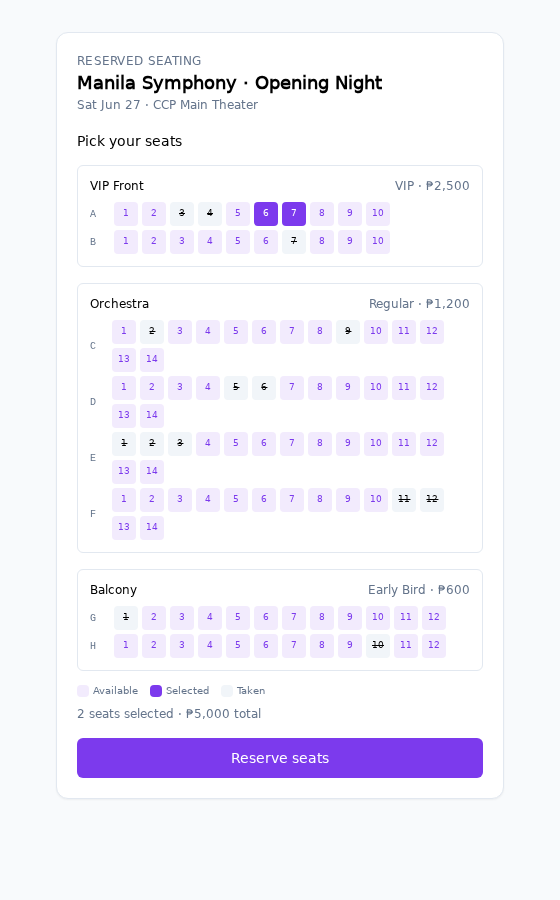
What guests see on your event page — color-coded by section, tap to select.
How to set up your seat map
Everything you need to build a reserved seating event, from choosing the mode to publishing the map.
Choose Reserved Seating
In the event creation form, switch Seating mode from General Admission to Reserved Seating. This unlocks the seat map builder for your event.
Add ticket tiers
Create your pricing tiers — Early Bird, Regular, VIP — with prices and quantities. Each tier will later be linked to a section of seats.
Build seat sections
Add sections like "VIP Front" or "Orchestra." For each section, pick a linked tier, set the number of rows and seats per row. Rows auto-label A, B, C… and seats 1–N.
Preview the map
A live preview renders instantly as you edit. See color-coded sections, row labels, and seat counts. The preview updates every time you adjust rows, seats, or tier links.
Publish & go live
Total capacity auto-calculates from all sections, and your publishing fee tier is computed automatically. Submit for approval — once live, guests can pick their exact seat.
Ready to publish your first event?
Get verified, build your event page, and pay the one-time publishing fee. Celebrio takes 0% of your ticket sales — guests pay you directly.